For IT partners: make a rule once, apply it per client
You look after the scope of several clients. Your Partner Dashboard shows what is open per client. A rule that fits many clients you make once, and apply where it belongs.
Other language: Nederlands · Français
Scope per client
The Scope per client block lists every client on the new scope. Per client you see how many controls are in order, not in order or have a question, and how many scope questions are open. Open takes you to that client's scope.
Clients without the new scope are not listed. If it says "figures being updated", come back a little later.
Make a rule
For example: devices whose name starts with "LAB-" are your own team's test devices, not the client's. Under Rules for all clients, click New rule:
- Kind of items, for example Devices.
- Name of the rule.
- Column, Condition (equals, contains, starts with, ends with) and Value.
- Why are these items not in scope?
- Click Save rule.
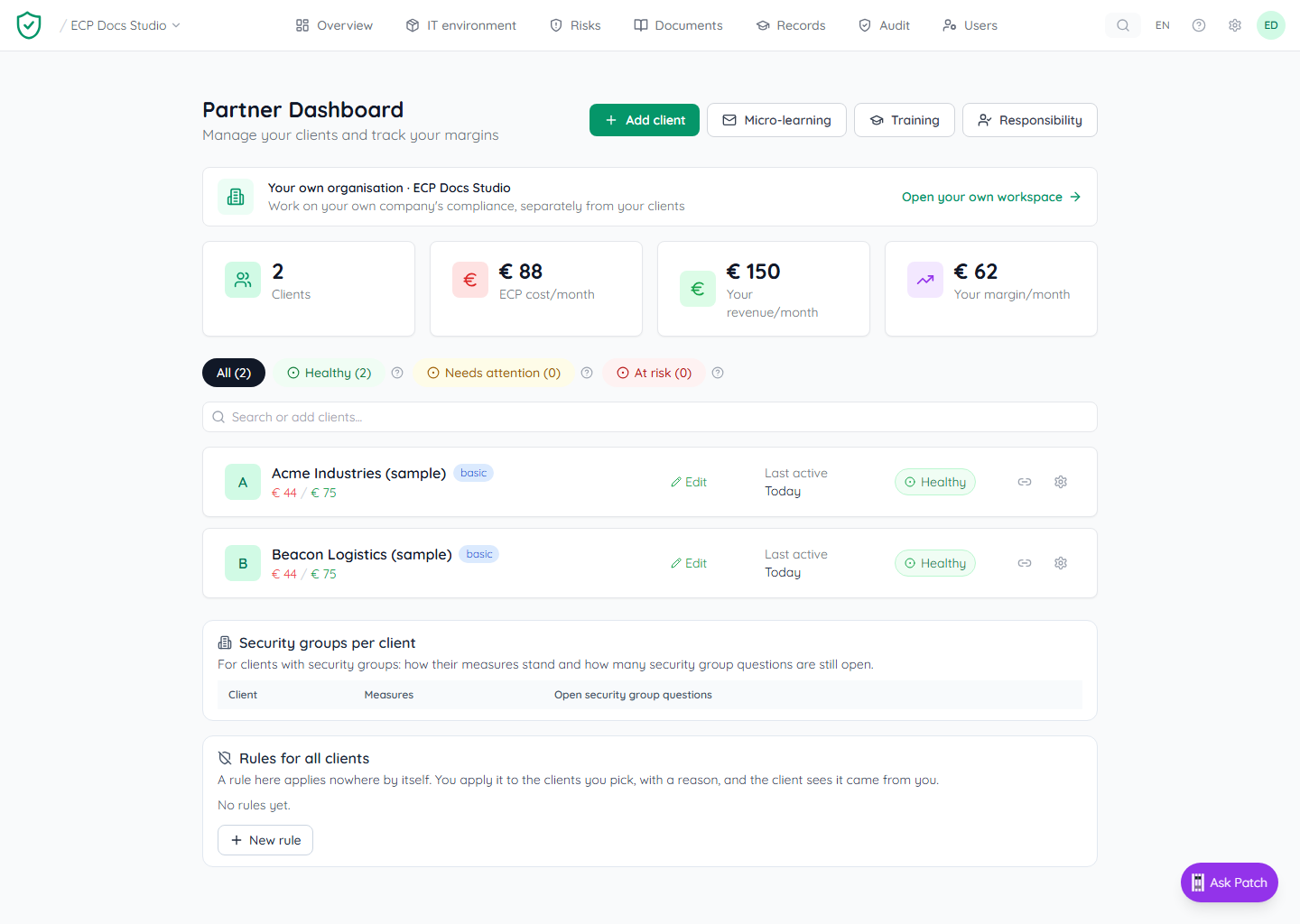
A rule here applies nowhere by itself. Apply it first.
Apply to clients
- Click Apply to clients next to the rule.
- Tick the clients. Per client you see how many items the rule takes out of scope.
- Fill in the reason. The client reads it.
- Does the rule take half or more out of scope at a client, or everything of that kind? Then you confirm that with a tick.
- Click Apply.
In their register the client sees "Applied by" with your company's name and your reason. Each application goes into that client's history.
The client also sees the rule, read-only, under IT environment, Size, Outside NIS2, marked Via your IT partner. The client cannot change or remove it. Only you can.
Withdraw or remove
- Withdraw at a client takes the rule away there. You give a reason, which the client reads.
- Remove rule stops the template. Where the rule is already applied, it stays until you withdraw it there.
Who can do this?
Only an owner or administrator of your partner organisation makes or applies rules. You can apply a rule only at clients on the new scope.
What a rule does not fix
If a connection sees things of another client, an exclusion rule does not help: the evidence stays mixed. Limit the connection at the vendor to that one client (organisation, site, or the environment at the vendor: the tenant) and sync again.
More about scope
- From your IT to your risks: the order of work
- What falls under your scope?
- Making groups
- Recording an exception
- Evidence per group, and a control that applies to one group only
- Scope questions on your dashboard
- Audit readiness for one part
- Access per part
- One device seen by several tools
- For IT partners: rules for your clients