Making groups: treat one part of your organisation apart
Some people or devices work differently from the rest. A group gives them a name. Then you can treat them apart without changing anything for the others.
Other language: Nederlands · Français
What a group is for
At Bakkerij De Testoven the engineers install their own tools. With a group "Engineers" the owner can:
- Record an exception for that group, on one control or one part of it.
- See on Audit how that group is doing.
- Let someone see only that group.
- Weigh a risk differently for that group. Ransomware on a kiosk computer probably does far less damage than on an office laptop. With a group "Kiosk computers" you can accept that risk there and still lower it on the laptops. See The order of work.
How to make a group
- Open Risks, then Security groups, and click New group.
- Answer How do you decide which entities belong in a group? Pick With a filter to let a rule find what fits, also later. Pick Select manually to choose the members yourself.
- Give it a Name, for example "Engineers".
- Under What it holds, pick the kind, for example Accounts.
- With a filter: under Conditions (all must hold), pick a property, "is" or "is not", and a value. For example: Group in the register is Engineers. Add a condition makes the group narrower. Next to the conditions you see at once how many are in the group, out of the total. If the number looks wrong, change a condition.
- Fill in Why this group? The auditor reads this.
- Save. You see that the group is saved, and it shows up in the list on Security groups.
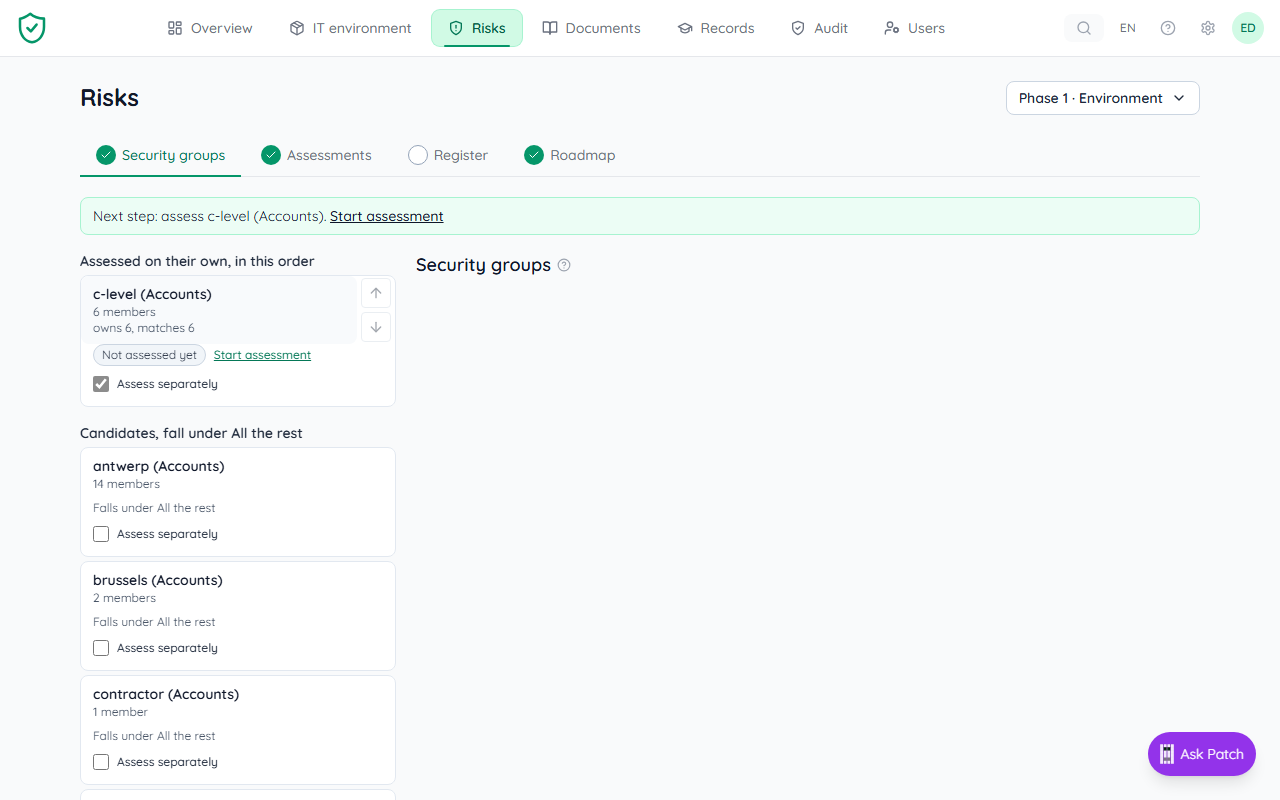
Where a new group lands in the list, and whether you assess it on its own, is explained on The order of work. In short: an item belongs to the first group in the list it fits, and only groups you tick Assess separately get their own assessment.
A group updates itself
You never type a rule or a formula. You pick from what your register already holds, such as the operating system, the site or a Microsoft 365 group. Only a name or an ID you type yourself (see below). When a new engineer joins later, they are in the group by themselves. Whoever leaves drops out.
No properties to pick from yet? Sync a connection first or fill in the register. A value you pick from the list with / + ! @ or = cannot be used in a filter. Pick another value.
By name or ID: type part of it
Sometimes no property sets a group apart, but the names do. Say you host phone systems for your own customers, and they are all called something like customer.3cx.be. Pick Name, then contains, and type 3cx. The count shows at once how many devices have 3cx in their name.
- Name works for every kind: devices, accounts, applications and the rest. ID only finds something where a connection or an import gives an ID: devices and accounts today. Applications and networks have no ID yet, so an ID condition finds none of them.
- In an import, these column names count as an ID, whatever their case or punctuation: ID, Serial, Serial Number, Serial No., Serienummer, Numéro de série, Asset ID, Asset Tag, Inventarisnummer, Instance ID, Device ID, E-mail, E-mailadres, Adresse e-mail, UPN.
- You can pick: is, is not, contains, does not contain, starts with, ends with. "Ends with .3cx.be" leaves out customer.my3cx.be.
- Upper and lower case count the same. Spaces before or after what you type are dropped. Any sign is allowed here, / and + too.
- The ID is a number a connection or an import gives: the serial number (from Microsoft 365, SentinelOne and NinjaOne), the Microsoft Entra device ID, the instance ID from AWS, the ID column of an import, or for an account its e-mail address. The name never counts as an ID, also not when your register made its key from it: use Name for that.
- Bitdefender, Check Point Harmony and Sophos give no ID today. An ID condition never finds their devices, and "is not" or "does not contain" on the ID finds all of them.
The group page and the auditor's export say it in words, for example "name contains 3cx".
What Microsoft 365 and SentinelOne let you pick
Once these connections have synced, you can pick these properties in a condition:
- Owner: company or private, from Microsoft 365. A personal phone or laptop never counts for the controls about company devices. "Only company devices" is: Owner is company.
- Category and compliance state of a device, from Microsoft 365.
- Account type: person, guest or unlicensed, from Microsoft 365. Guests you invite from outside your company (Microsoft marks their login with #EXT#) are not on the register, so they count nowhere. Account type is guest finds the rare guest that is on it.
- Admin role and Administrator (yes or no), from Microsoft 365.
- Account type (guess): shared. An account with a mail address but no licence is probably a shared mailbox. Microsoft does not say so for certain, so it stays a guess and never counts as Account type.
- Role (laptop, desktop or server), operating system, site and device group, from SentinelOne.
Do both connections see the same device, under the same name? Then one group can use both: Owner is company and Role is laptop.
Does your IT partner use one SentinelOne key for several clients? Then they pick this client's site. Only your IT partner, or whoever entered the key, can pick it: the key also sees their other clients. Until a site is picked, nothing is read. Devices that SentinelOne read earlier without a site may belong to other clients, so they leave the register until a site is picked.
What NinjaOne, Bitdefender and Check Point let you pick
- Role, operating system and site, from NinjaOne RMM. The site is the NinjaOne location. Role is server, workstation or mobile, whatever the operating system: "All servers" is Role is server, and catches Windows, Linux and Mac servers alike. NinjaOne puts its devices on the register only when it is your only device connection. Is Microsoft 365, SentinelOne, Bitdefender, Sophos, Check Point or AWS connected too? Then the same laptop could show up twice under two names, so NinjaOne waits until we can match devices by serial number.
- Role (computer or virtual machine), operating system, site and device group, from Bitdefender. The site is the Bitdefender company.
- Role (desktop, laptop or server), operating system and device group, from Check Point. A domain controller counts as a server, desktops and laptops count as workstations. A device in several Check Point groups matches each of them.
Does your IT partner use one Bitdefender key for several clients? Then they pick this client's company. Only your IT partner, or whoever entered the key, can pick it: the key also sees their other clients. Did you enter the key yourself and has someone else replaced it since? Then enter your key again to pick the company. Until a company is picked, nothing is written. Devices that Bitdefender read earlier without a company may belong to other clients, so they leave the register until a company is picked. NinjaOne already asks for the client's organisation when you connect. Check Point reads the account of its key.
Change, fill or remove a group
Click a group on Security groups to open it. There you can:
- Change the Name and click Save. A new name keeps the members and the exceptions.
- Set a rule or Change the rule, with the same conditions as above.
- See what is in it, and Add something the rule misses. Look it up by name and give a reason.
- Take out of this group something that should not be in it, again with a reason.
- Remove group. You are asked why the group is going away, and the reason goes into the history.
A fixed group, such as All the rest, can be changed but not removed. Does a group limit what someone may see? Then you cannot remove it while that limit is in place.
What does not count: Outside NIS2
Do you host systems for your own customers, such as phone systems? Make a group for them, then put it outside NIS2 under IT environment, on the Size step, with Put a group outside NIS2 and a reason. What is outside is not assessed anywhere. Single items can go outside too. See The order of work.
Make a risk count for one group
A risk counts for the whole company until you pick a group. On the risk in your assessment:
- Under Which part of the company does this risk apply to?, click a group, such as one site.
- Does it play in more places? Click those groups too. Click The whole company to undo.
Each group shows what it counts, such as "17 devices". A button with a dashed line is a suggestion, with the reason next to it: the risk names a device of that group, or one of its controls is about it. Nothing changes until you click it.
A few risks start with a group already, because they are plainly about one kind of thing: patching is about devices. When you start a new assessment, you can pick the part of the company it is about. Every risk then starts with that group.
Gaps need no setting: they follow the devices and people in the group. On the risk register, the roadmap and Te doen, Show for picks one group. Someone who may only see their own part sees only the risks chosen for their group.
One risk, different scores per part of the company
Ransomware on your office laptops is not the same risk as ransomware on the phone systems you host for customers. You keep one risk and give each part its own score. You can do this while you review the assessment, or later in the risk register. On the risk:
- Under Scores per part of the company, click Add a group and choose the group, such as "Customers".
- The group starts with the same scores as now. Click Change to set its likelihood, impact, owner and treatment.
- The rest of the company keeps the old scores, marked not reviewed yet, until you click Confirm.
The rest is always Everything else: everything except the groups you added. A device that turns up later and is in none of those groups lands in the rest by itself. Nothing falls off the register.
Does a risk not apply to a group at all? Click Does not apply to this group, give the reason and, if you want, an end date. Your auditor sees that reason in the Statement of Applicability and in the audit export. Make it apply again undoes it.
Two parts can never hold the same device or person. If you try, you see which items are already in another part, and nothing is saved. Does a part end up with the same scores as the rest? You are offered to merge it: Merge into Everything else (this line disappears). When an action was meant for that part, it moves to the rest by itself.
The register shows one row per risk, with the highest score of its parts. An action counts for the parts of the risks it solves. Actions stay on the whole risk.
Narrowing a risk under Choose groups never drops the rest. You get the question What about the remaining ...?, with what is left, such as "20 accounts". Choose Same risk, its own scores to keep the rest on the register to confirm, or Not applicable with a reason. Cancel changes nothing. Once a risk is split, you manage its scope under Manage parts.
Who can make groups?
Owners, administrators and members who may manage the register. Someone who may only read sees the groups without buttons.
More about scope
- From your IT to your risks: the order of work
- What falls under your scope?
- Making groups
- Recording an exception
- Evidence per group, and a control that applies to one group only
- Scope questions on your dashboard
- Audit readiness for one part
- Access per part
- One device seen by several tools
- For IT partners: rules for your clients