Quick Start: Onboard Your First Client
From login to a client workspace that is ready to be set up. Then you follow the order of work: at each step you see what ECP prepares and what you decide.
Also in Nederlands and Français.
What you do in this quick start
- Log in to your partner dashboard
- Create a client workspace
- Answer the questions from Patch, the assistant in ECP, and approve the CyFun level
- Work through the six steps of the order of work: IT, groups, assessments, register, roadmap, documents
Log in as partner
Go to easycyberprotection.com/login and sign in with your partner account. You'll land on the Partner Dashboard showing your client portfolio.

Add a new client
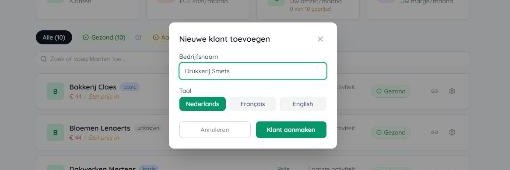
Click Add client in the top-right of the dashboard. Enter the client's company name and preferred language (NL/FR/EN). A workspace is created instantly.
Set the CyFun level with Patch
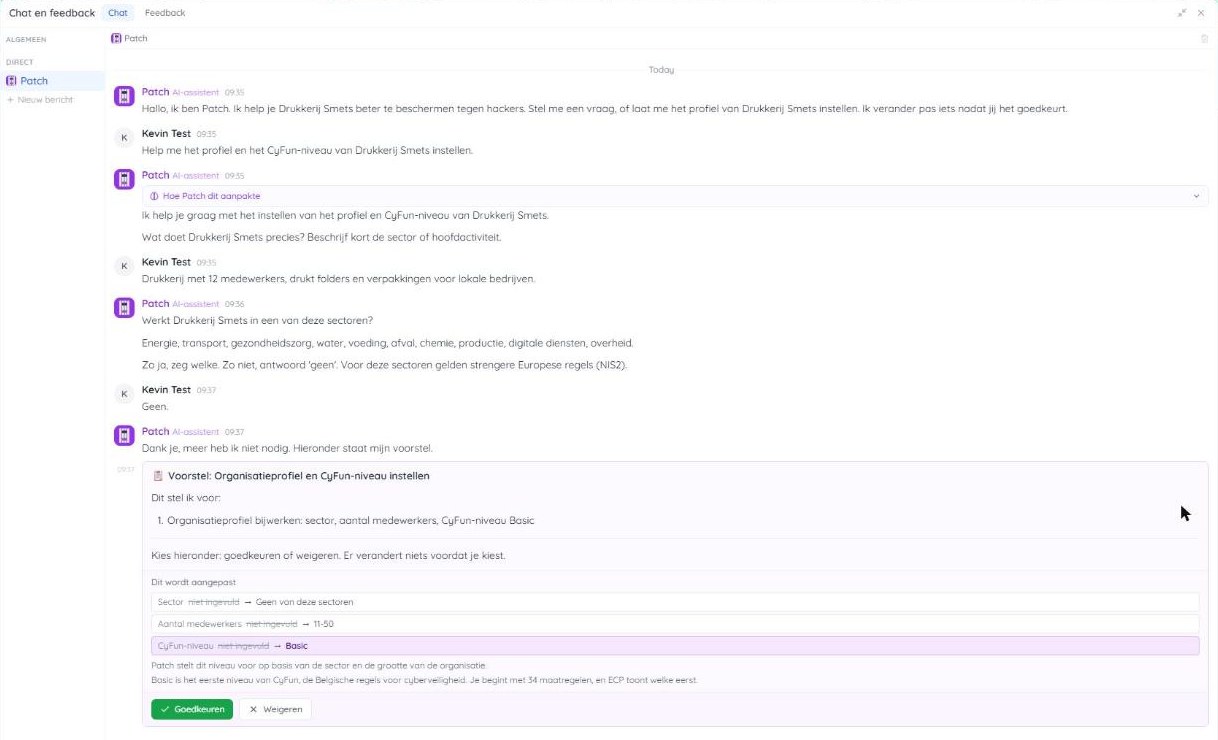
The new client's home shows one Next step card: set the CyFun level with Patch. Click it. Patch asks for the facts that decide the level:
- What the company does and how many people work there. One sentence is enough.
- Whether it works in a NIS2 sector, such as energy, transport, healthcare, manufacturing or digital services. Answer "none" if no sector applies; "no idea" makes Patch ask again.
- Turnover, only when a sector applies, because that decides between Important and Essential.
Patch then proposes Basic (34 controls), Important (133) or Essential (218). Nothing changes until you click Approve; Reject leaves the client as it was. You can change the level later by asking Patch.

Walk the order of work
From here the client's home always shows the earliest open step as the next one, so you never have to work out what comes next. The order is:
In one sitting, without the client
You do these six steps alone, in one sitting. Only the approval of the documents waits on the client. The CyFun level from step 3 has to be chosen first.
-
IT environment
ECP: reads devices and employees from Microsoft 365 and from the EDR as soon as they are connected, and builds the inventory from them.
You: fill in the size and check the inventory. The connection can come later, once the client allows it. Until then you import a CSV (see below) or mark in the guide that there is no connection.
-
Security groups
ECP: already sets up the Employees group.
You: decide which other parts of the company you want to weigh separately. A group you choose with Assess separately is assessed on its own, in the order of the list. A candidate falls under All the rest until you choose it, and the wizard refuses an assessment for a candidate. All the rest is always last and has its own assessment. Things that do not count for NIS2 go under IT environment, Size, as Outside NIS2.
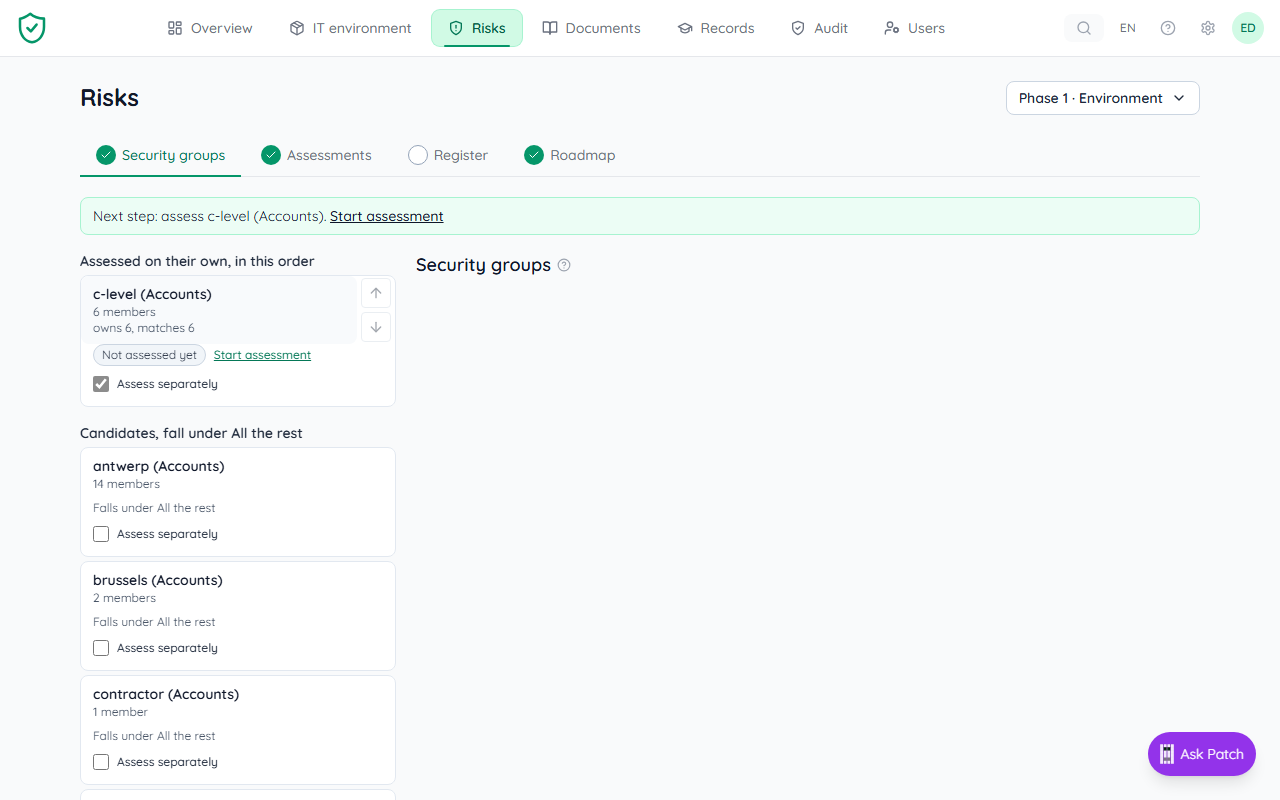
Tick Assess separately and confirm: the group moves to the top list and gets its own assessment. The rest stays under All the rest. -
Assessments
ECP: prepares the standard risks and their actions for the chosen CyFun level as candidates.
You: choose which assessment to make per group, and decide which candidates stay.
-
Register
ECP: shows the risks as candidates, not yet treated.
You: decide per risk what to do about it and who owns it.
-
Roadmap
ECP: carries over the actions suggested by your assessment, without an owner or a date.
You: pick at least 3 actions and give each an owner and a date.
-
Documents
ECP: provides the policy documents as templates.
You: fill them in and have them reviewed. Leave the approval to the client (see below). Your risk decisions tell you which policies to write.
Waiting on the client
Ask for these two things on day one. Neither holds up the steps above.
- An administrator at the client who allows the connection to Microsoft 365 and the EDR. Without a connection you carry on with a CSV or with devices you enter yourself.
- A person in management who approves the documents. Until then you write them and have them reviewed. Whoever approves also publishes. Any client user who can edit may approve, so give that person a user in ECP.
Also handy to ask right away, but nothing waits on it. Which sectors does the client work in, and how many people work there? Patch uses that to propose the CyFun level. And who at the company will take on the risks and actions as owner? An owner is a name you fill in.
Each step is explained on The order of work. Having the documents read by staff is only required before the client is audit-ready. Training, the registers and the management review are separate tasks: they do not block the order above, but they do belong to an audit-ready client.