Fixing a failing control
One control, end to end: open it from Audit, fill in the documents it needs, link or upload the evidence it is missing, and check that the control is closer to audit-ready.
The short version
Open Audit, pick a control that is not audit-ready, and open its control page. The Needs you list says what is missing. Fill in the documents that still have empty fields, and link or upload the missing evidence. The control page counts the requirements met, for example 2 of 3 requirements met.
Step 1: Pick a failing control
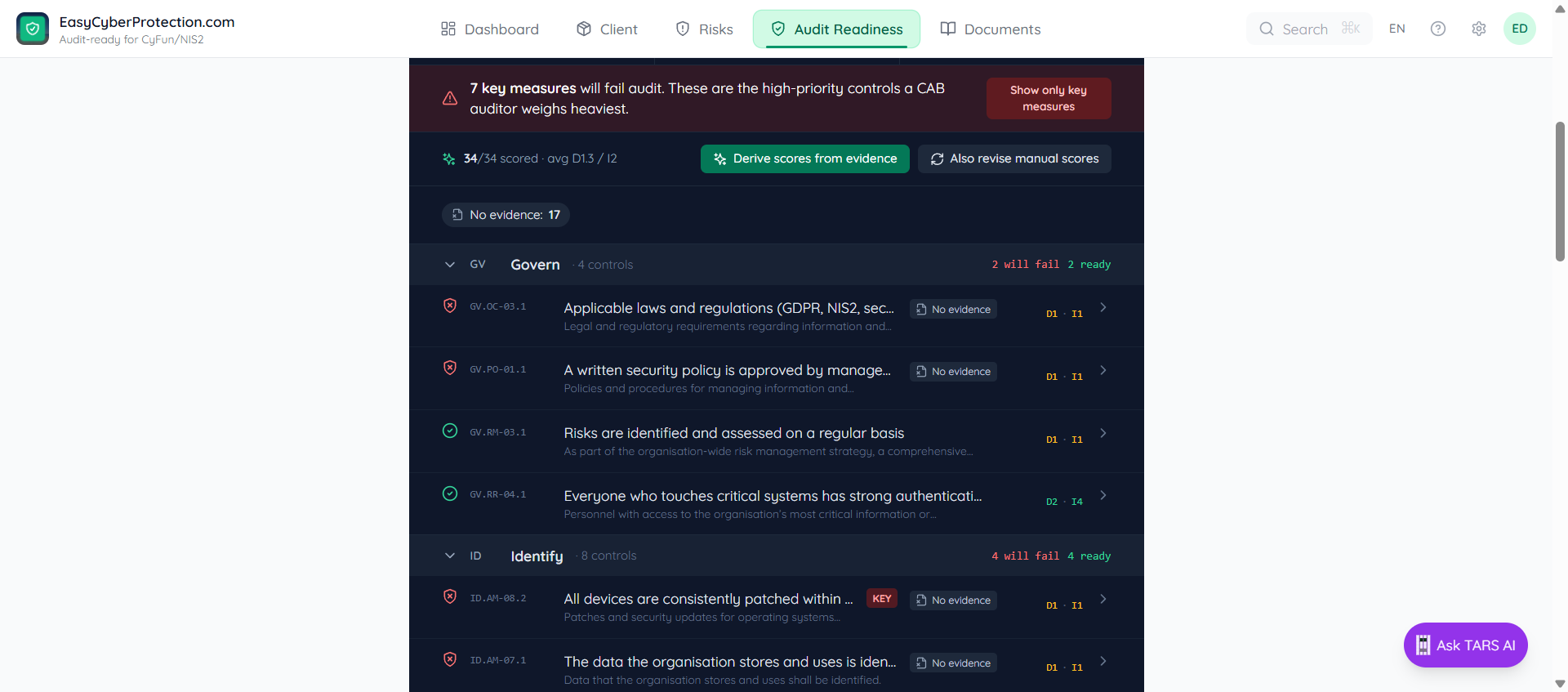
Open the Audit tab. The header shows how many of the 34 controls are audit-ready. Quickest wins lists the controls that are one action away; click Upload evidence on one to go straight to it. Or click a status such as Evidence missing to see only those controls. Below, all controls are grouped by function (Govern / Identify / Protect / Detect / Respond / Recover). Controls tagged KEY carry the most weight at audit.
Step 2: Expand to see what's missing
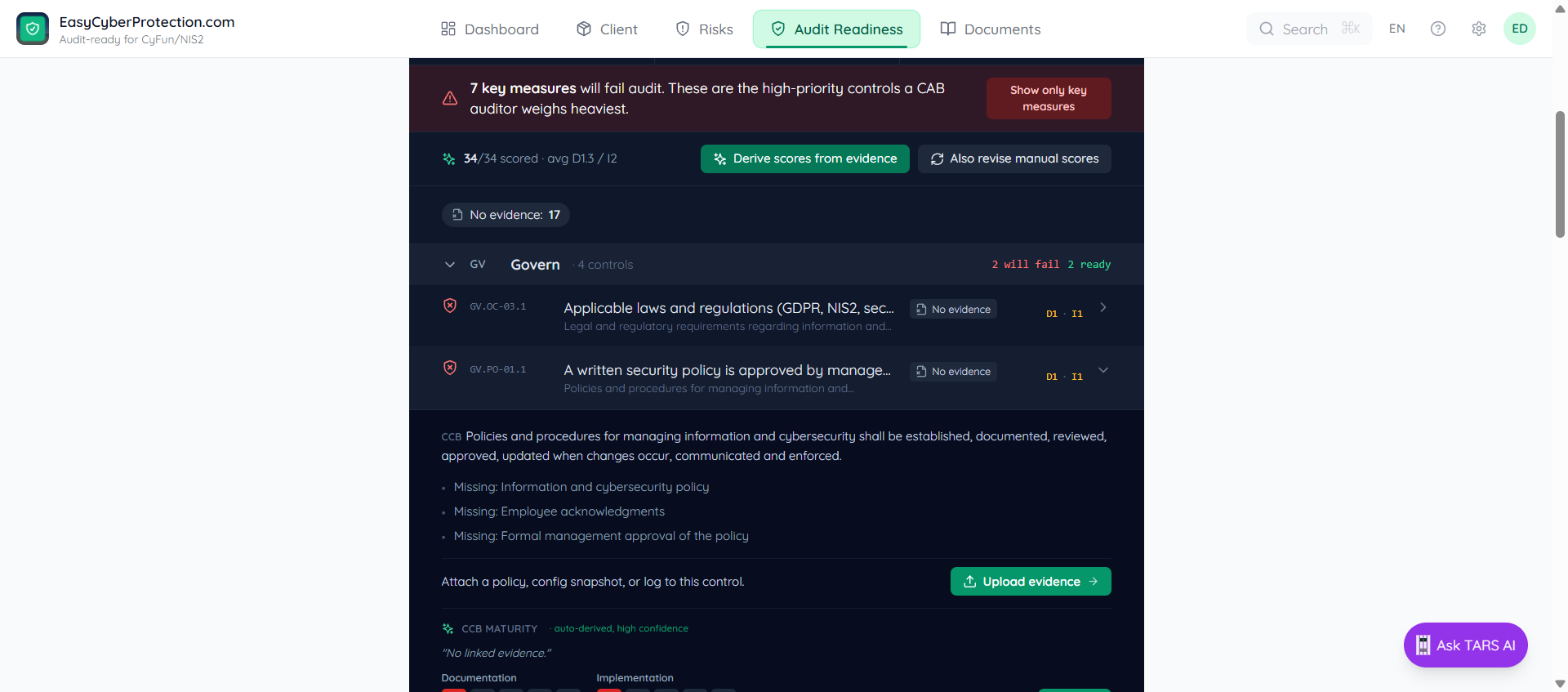
Click a control row. The expanded row shows its status, the documents it needs with a Fill in button each, and how much evidence is linked. Fill in the document opens the policy, Open control page opens the control.
Step 3: Fill in the documents
The control page opens with a breadcrumb (Documents → controls → cyfun-2025-basic → …), the CCB reference and the measure's text. Under Responsible you set whether the MSP, the client or both (Shared) take care of it. Documents for this measure lists the policies that count for this control. A banner such as Security Policy still has empty fields tells you a document is not finished.
Click Fill in next to a document, or Fill in the document → in the banner, and complete the empty fields. The Needs you list names them, for example 2 fields still empty: Next review date · Document owner.
Step 4: Link the missing evidence
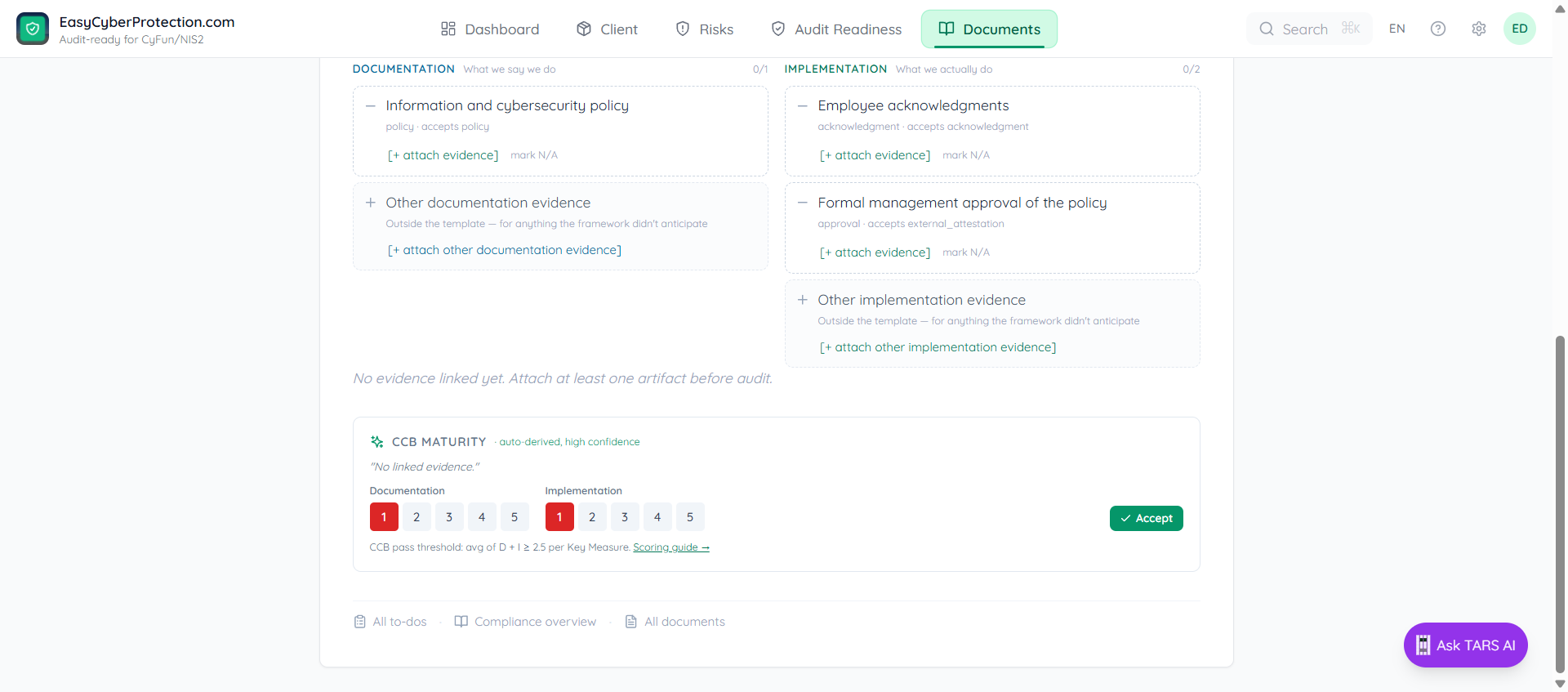
Scroll to the Needs you list. It shows what is still open for this control: Link it attaches a document you already have, and Go to the first empty field jumps into a policy that is not finished.
Where the whole control does not apply, use Mark the whole control not applicable at the bottom of the control page. If it applies to only part of your organisation, use Limit to a group under Applies to.
Full walkthrough: Attach evidence.
Step 5: Check the result
Back on Audit, check the control's status and the percentage at the top. On the control page, the Maturity line has a change link for the CCB 1 to 5 score.
The CCB scoring guide at the bottom of Audit explains what each level means.
After a bulk change like a Microsoft 365 sync, use Recalc maturity at the top of Audit.