Audit
Open the Audit tab to see where each of the 34 controls stands today: what is missing, and what to do next. The header shows how many are audit-ready.

Six statuses
Each control has one or more of these. Click a status near the top to see only those controls:
- Evidence missing and Evidence incomplete: the proof is not there yet, or not all of it
- Document incomplete: a policy still has empty fields
- Awaiting approval: waiting for management
- Expiring soon: evidence that is about to run out
- Audit-ready: nothing left to do for now
A control can have several causes at once. KEY measures counts the controls an auditor weighs heaviest.
From gaps to the Roadmap
Click Add to Roadmap to add every control that is not audit-ready yet as an action on the Roadmap, where you can assign it and give it a date. Open roadmap takes you there.
You can click again any time: whatever is fixed gets ticked off and new gaps are added. After that, the platform keeps it up to date every day.
Quickest wins
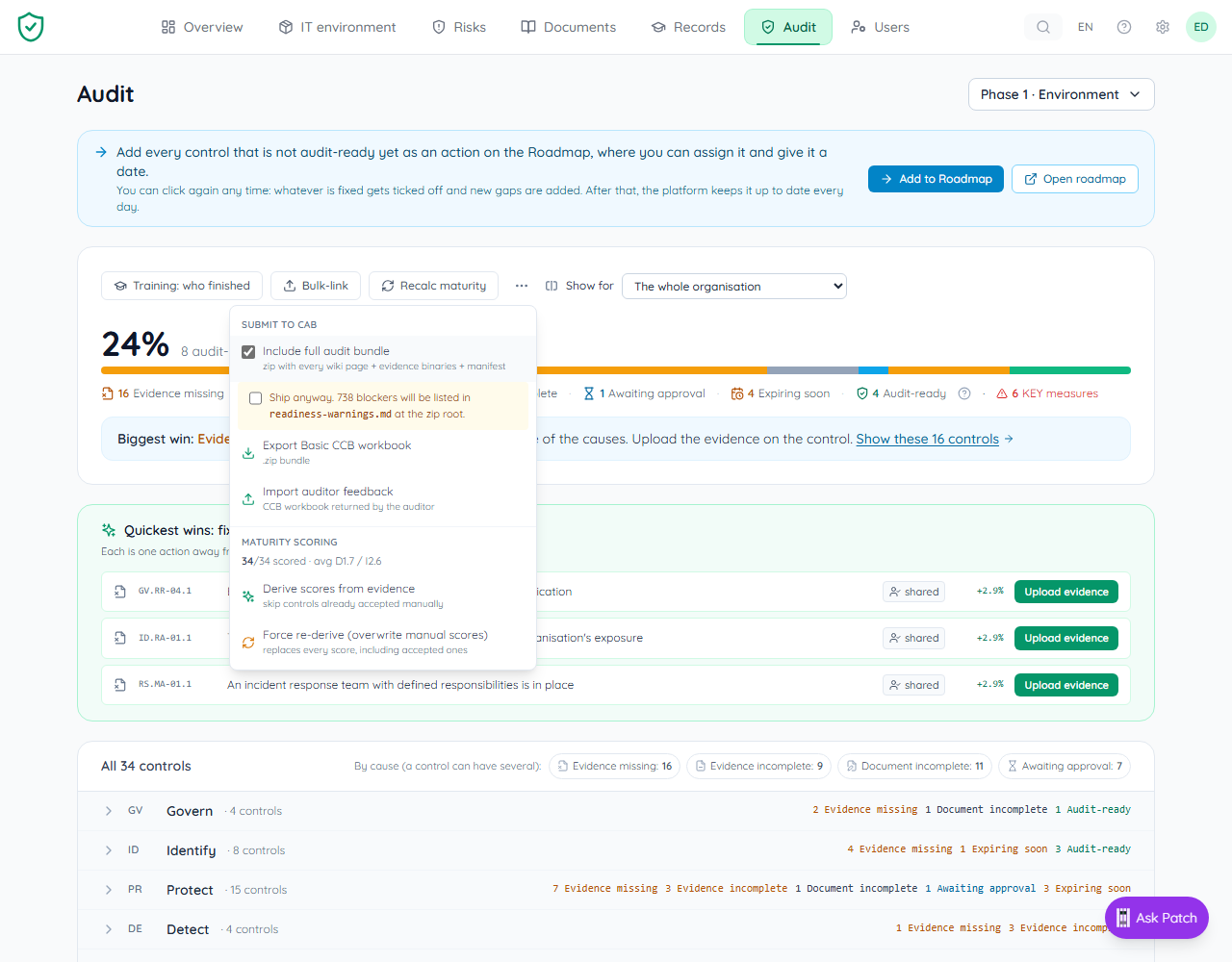
Below the header, Quickest wins lists controls that are one action away from audit-ready, with the gain for each (for example +2.9%). Click Upload evidence on a card to attach evidence directly. A line above it names the Biggest win: the cause that, once fixed, closes the most controls.
Show for narrows the whole page to the whole organisation or to one security group, for example Windows (Devices) or Administrator accounts (Accounts).
The control list
Under All 34 controls, controls are grouped by CyFun function (Govern, Identify, Protect, Detect, Respond, Recover) with a count per status, for example 4 controls · 2 Evidence missing · 1 Document incomplete · 1 Audit-ready. Each row shows the CCB reference (for example GV.PO-01.1), a plain-English title, the shall-statement from the framework, its status, and two small scores, D (documentation) and I (implementation). Controls flagged KEY are the ones a CAB auditor weighs heaviest.

Expand a control to fix it
Click any row. The expanded panel shows the status, the documents the control needs with a Fill in button each, how much evidence is already linked (Linked evidence: 3), and Open control page. When a document is not finished, Fill in the document → starts on it.
On the control page, the Maturity line has a change link for the CCB 1 to 5 score. Recalc maturity at the top of Audit recalculates the maturity scores. The CCB scoring guide at the bottom of the page explains what each 1 to 5 level means.

Pre-export readiness
When you tick Include full audit bundle in the ··· menu, a readiness check lists the gaps first. Red blockers stop the export unless you tick Ship anyway; the blockers are then listed in readiness-warnings.md at the root of the zip. How to export is in Exporting for your CAB auditor.
Before you call the audit
Confirm your numbers on IT environment, Size first. Population gaps (for example Microsoft 365 sees 12 devices, you declared 83) are only flagged once the platform knows what all means.