Documents
The Documents tab is your built-in wiki. Every policy, procedure, register, plan, assessment, and report lives here.
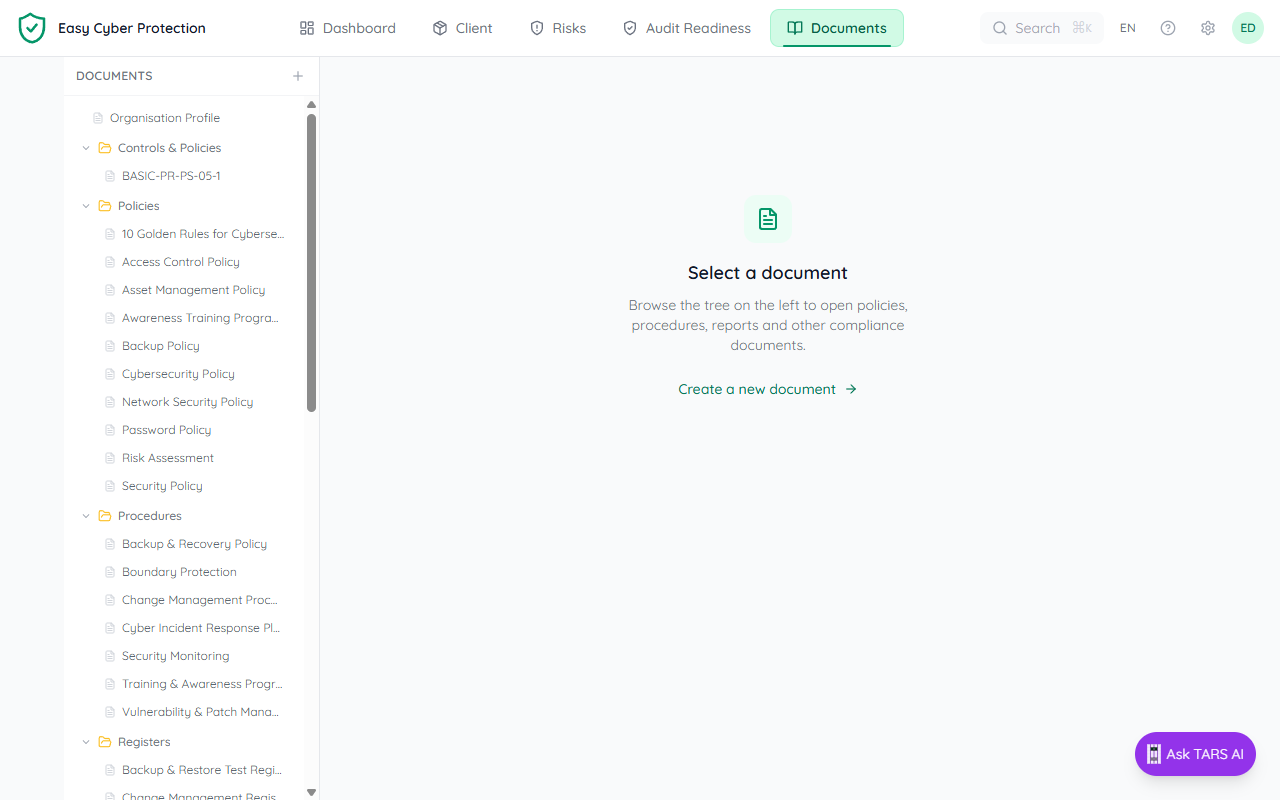
What's in the tree
- Organisation Profile: your brand name, language and org-wide details (top of the tree)
- Controls & Policies: Policies, Procedures, Registers, Reports (Action Items, Compliance Dashboard, Evidence Gaps, Quarterly Business Review, Statement of Applicability) and Plans (Business Continuity & Disaster Recovery Plan)
- Assessments: the risk assessments, for example Risk Assessment 2026
- Evidence: your uploads
- Getting Started: onboarding pages
- Governance: Risk Appetite Statement, Risk Treatment Plan
- Integrations: one page per connected source, for example Aikido and Graph
- Settings: Organization Settings
Navigating the tree
The Documents tab opens with a sidebar tree on the left and the document content on the right. Click a folder to open it and a document name to read it. With nothing selected, the right side says Select a document. The Organisation Profile sits at the very top of the tree and holds your brand name, language, and other org-wide metadata.
Control pages (e.g. controls/cyfun-2025-basic/gv/po-01-1) are not in the sidebar. They are reached from Audit or via the breadcrumb inside any control page.
Jumping from Audit
From the Audit tab, the quickest wins have an Upload evidence button, and every expanded control has Open control page. Both land you on the control page, where Needs you shows what is missing. See Fixing a failing control for the full walkthrough.
Creating new documents
Click Create a new document on the welcome screen to add a page of your own.