Generate a Policy with AI
TARS reads what it already knows about your organisation and generates a tailored compliance policy in one step. Open any control page, click Generate Policy Draft, approve the plan, and the policy is saved directly to your wiki.
TL;DR
Open any control page, click Generate Policy Draft, review the plan card, and click Approve. Done in under a minute.
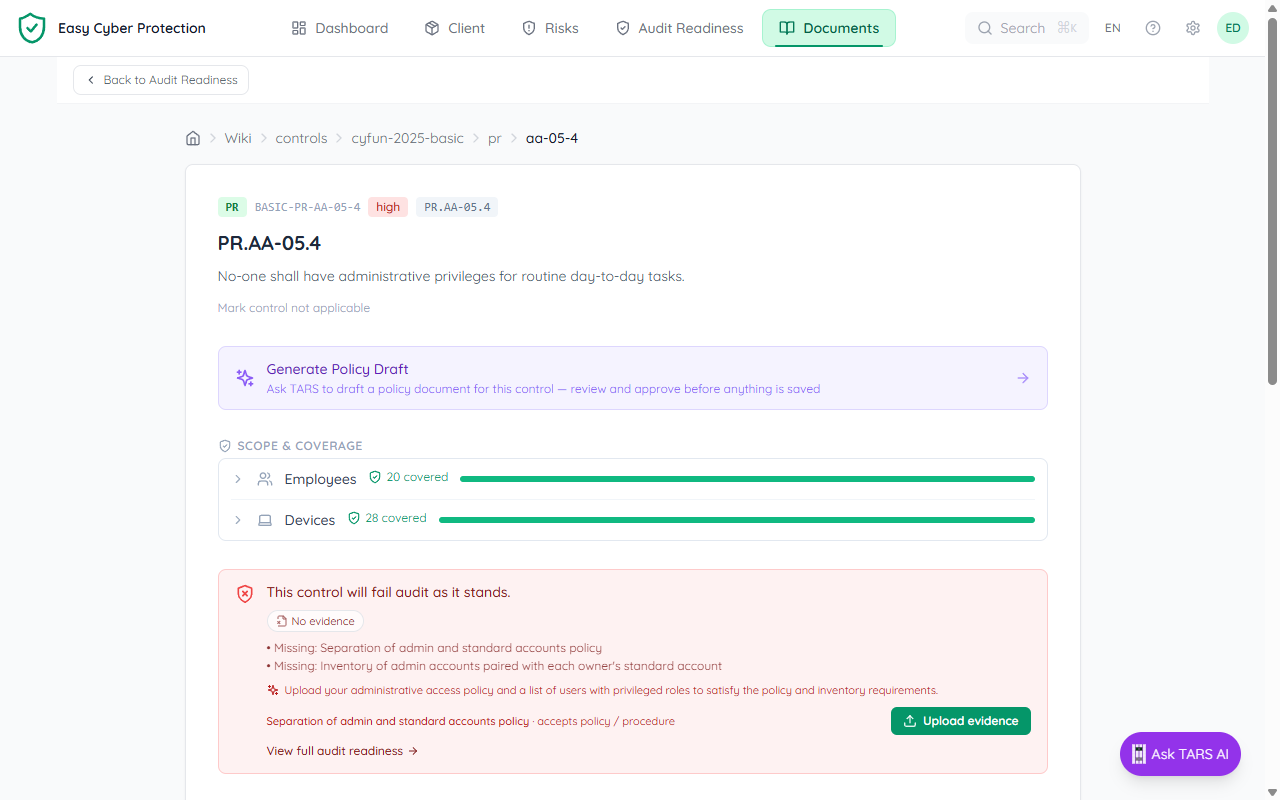
Step 1 — Open "Generate Policy Draft"
On any control page (e.g. PR.AA-05.4), click the Generate Policy Draft button. It appears as a prominent purple card with a sparkle icon below the control description.
Step 2 — Review the plan card
TARS opens in a side panel and shows a plan card describing what it intends to do — for example, adding the missing sections to your existing Access Policy, or creating a new document. The plan card names the target document and shows a preview of the draft, so you see exactly what will be saved before you approve.
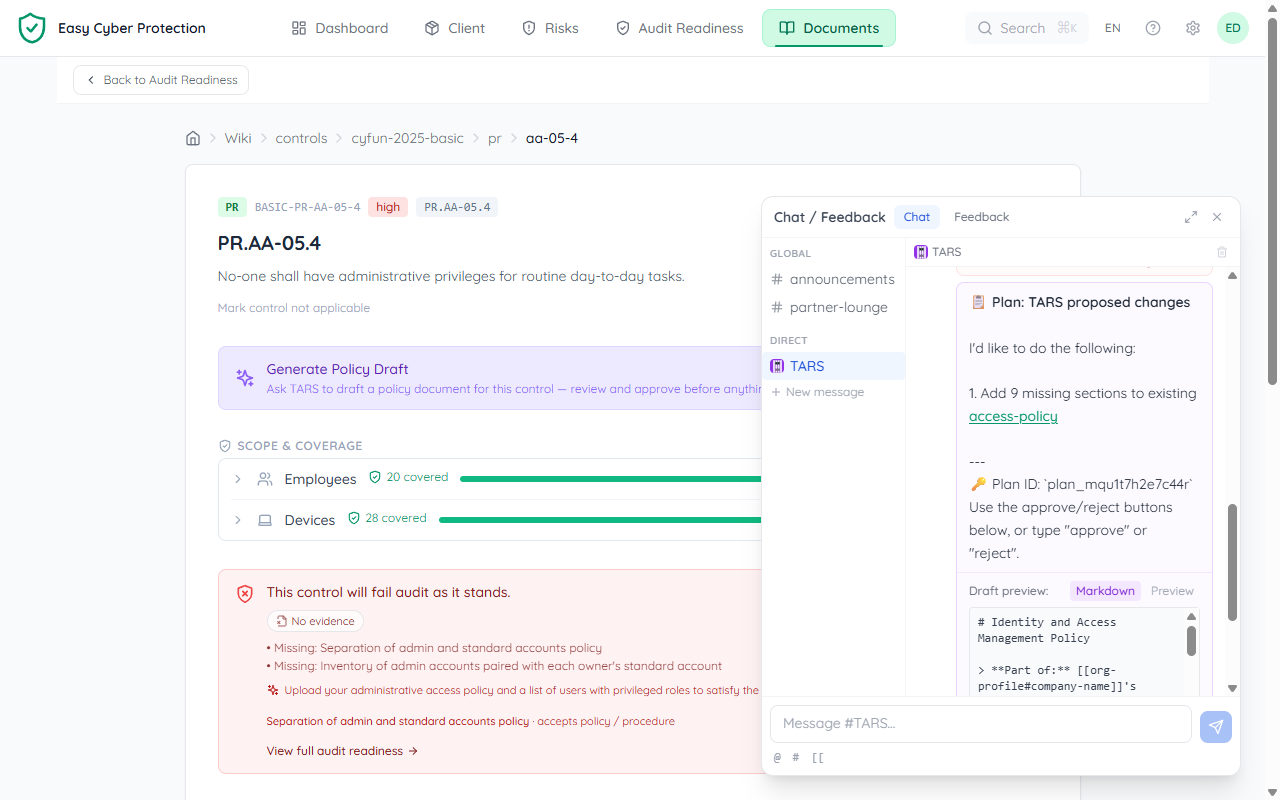
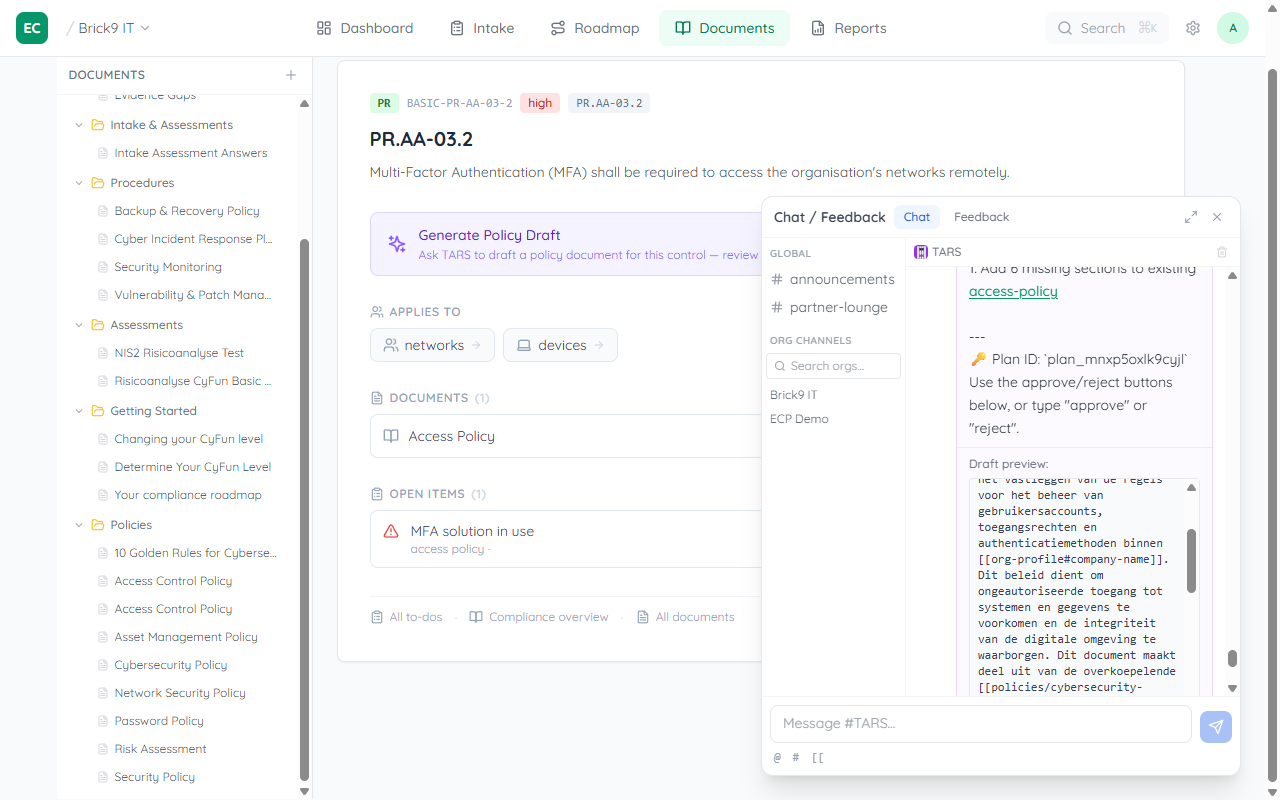
TARS groups controls intelligently — clicking Generate Policy Draft on any access control (MFA, password rules, user accounts) will target the same shared policies/access-policy document. You never end up with duplicate policies for related topics.
If the document already has content, TARS extends it by adding missing sections rather than replacing what you already wrote.
Step 3 — Approve
Click Approve on the plan card. TARS generates the policy draft and saves it to your wiki. A link to the saved document appears in the chat when done.
Editing after generation
The saved policy is a regular wiki page — you can edit it at any time from the Documents section. If you select a sentence in the document, a small AI toolbar appears so you can ask the AI to rephrase or improve that specific passage.
Already have a policy?
If TARS detects that a policy document already exists with your own content, it will offer to extend it — adding any missing sections while leaving your existing prose untouched. If all the relevant controls are already covered, TARS will simply tell you the document is complete.